Game Overview
For this project, my colleague Yiwei Wu, Haoyang Qin, Yun, and I decided to try out our hands at localizing an open-source Unity game Glitcher into Simplified Chinese and Japanese.
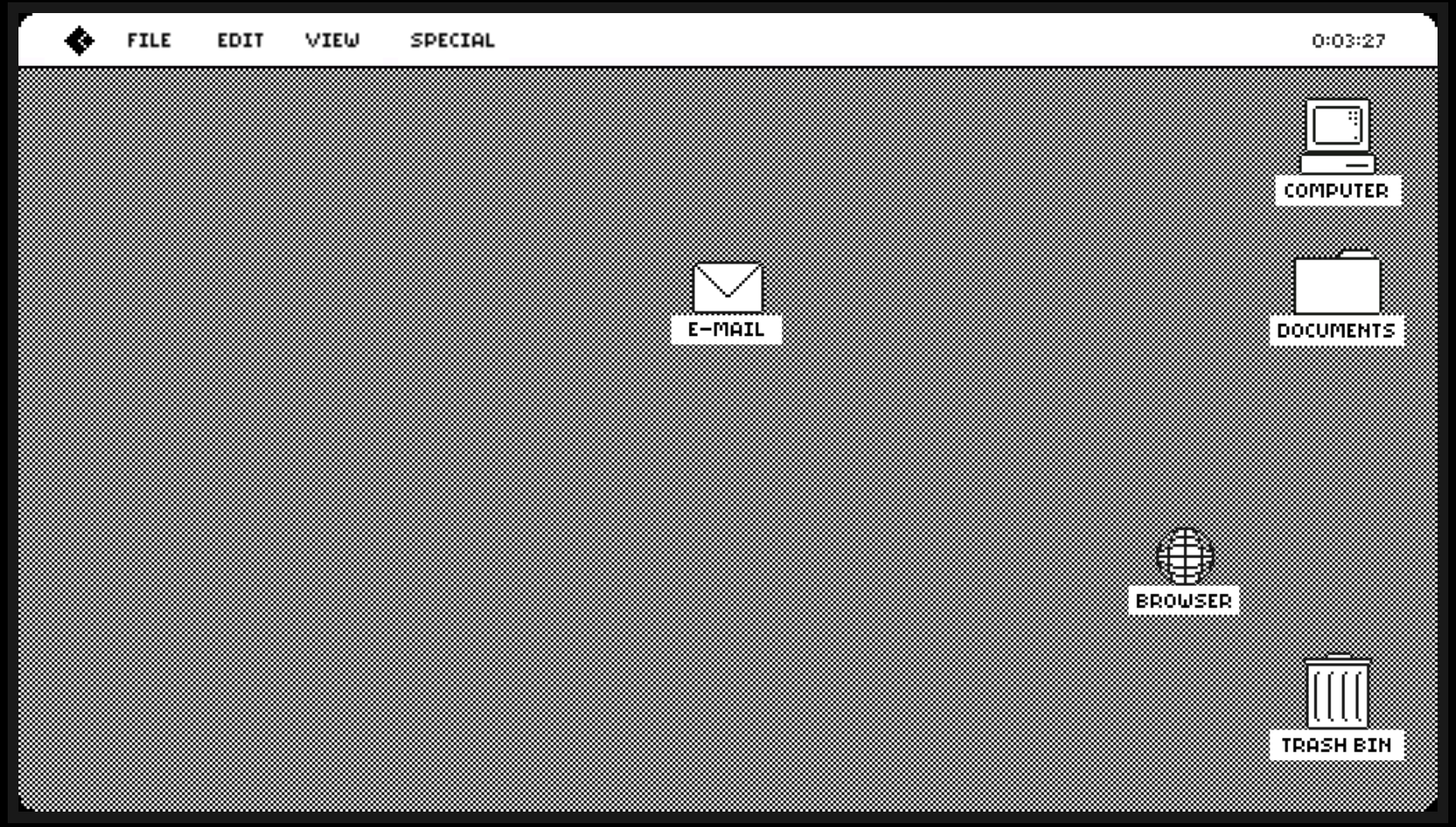
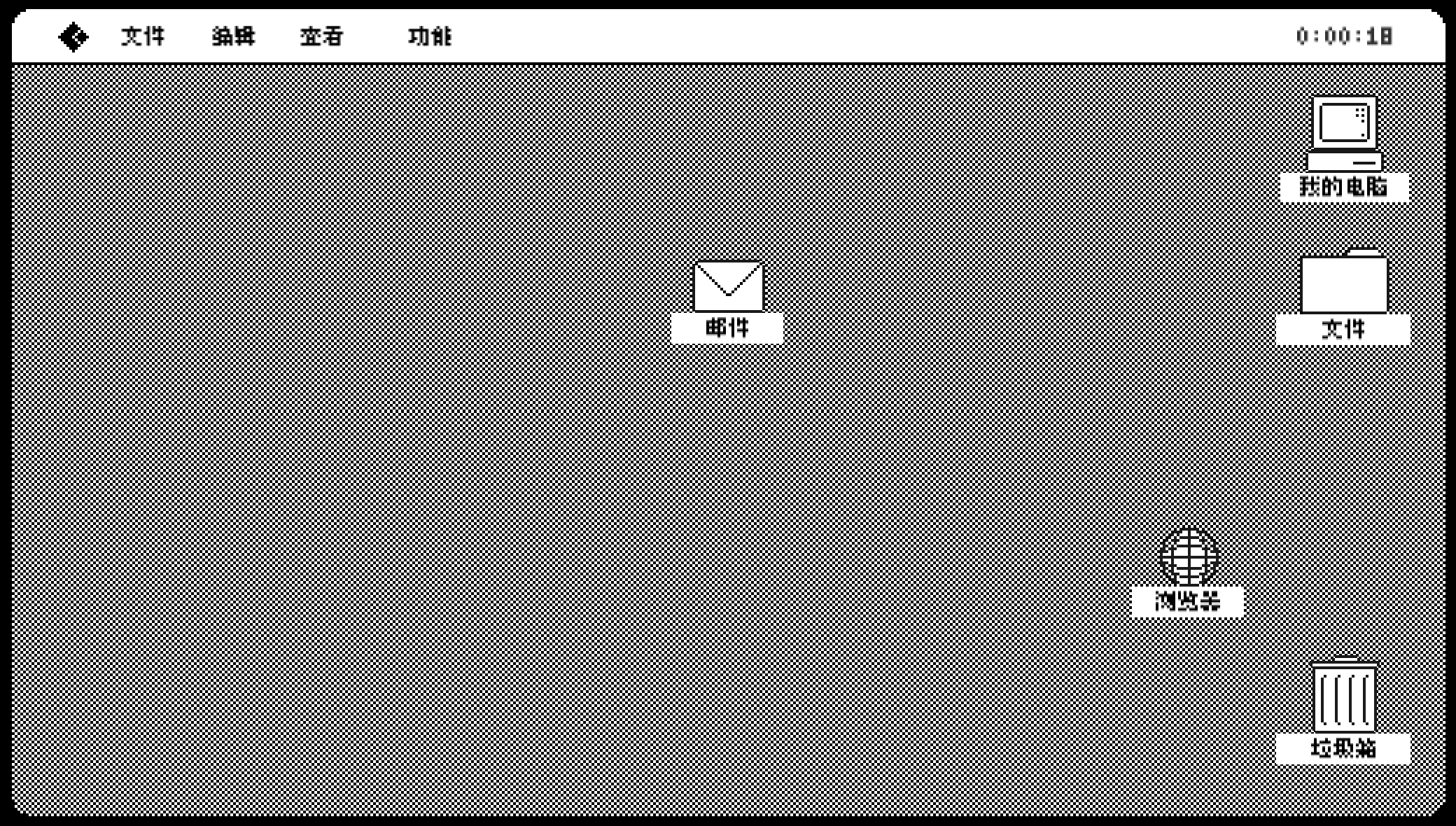
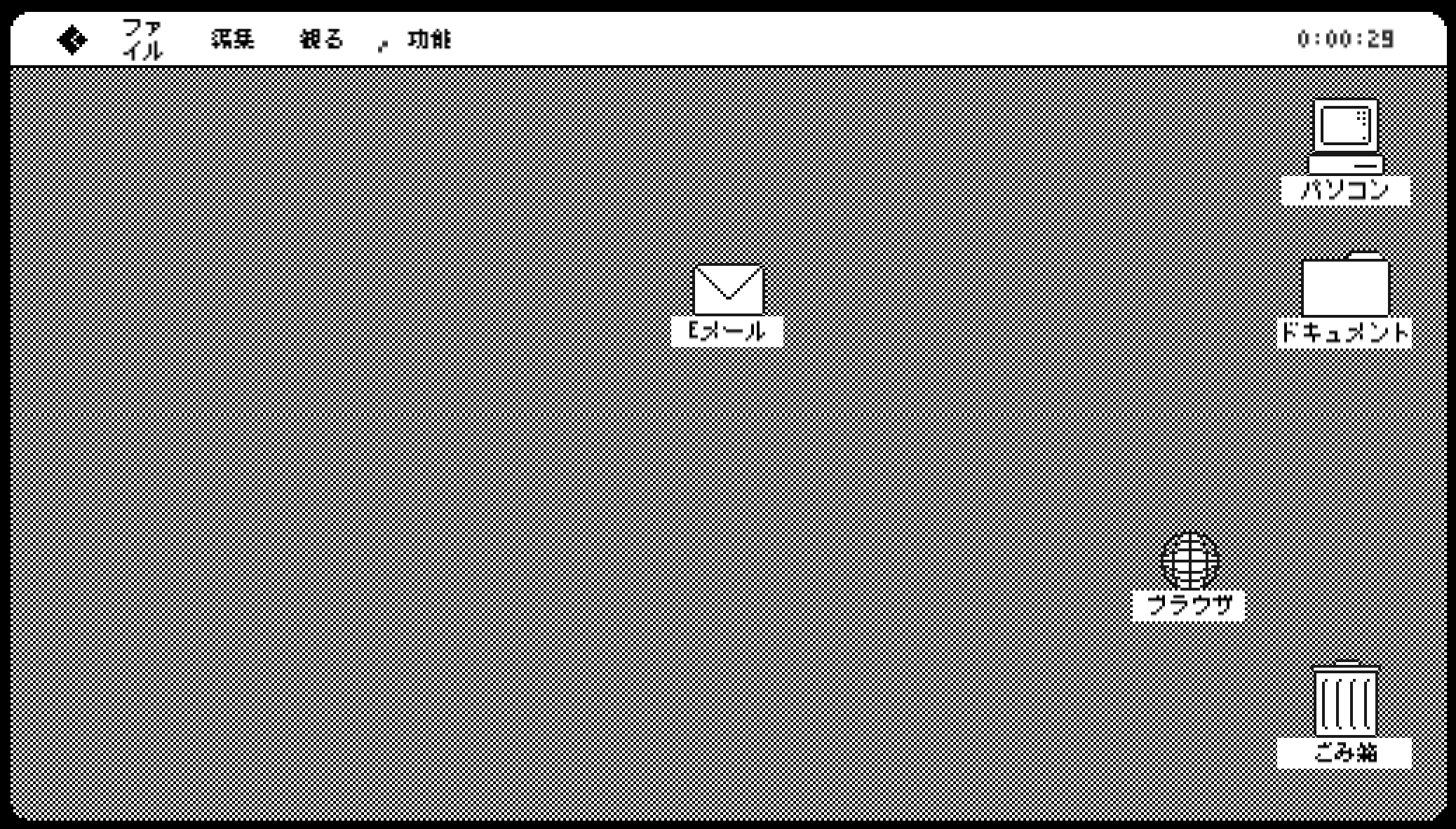
Glitcher is a Tactical Espionage game where you play as a computer virus. It was created by Rafi Emilio Alam & Sarada Chen for the Github Game-Off Jam 2017.
We got the source files in GitHub.
The following is our I18N & L10N process:
Localization Check
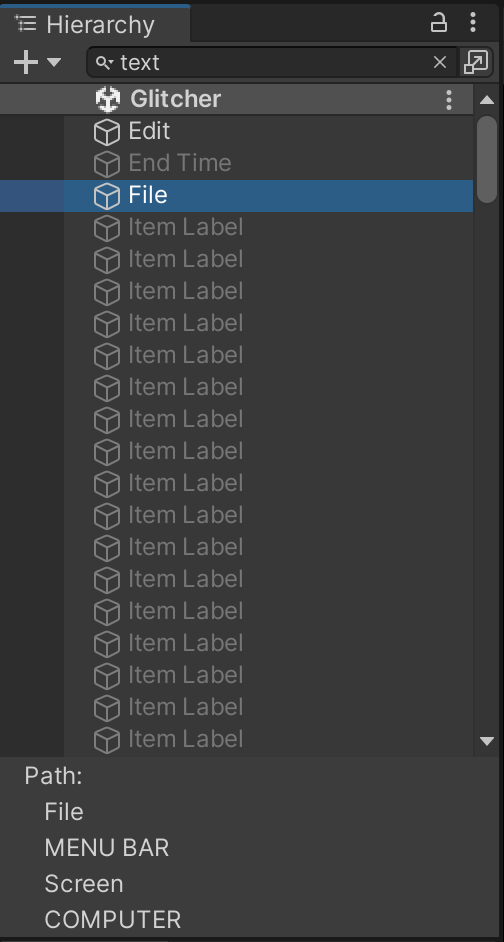
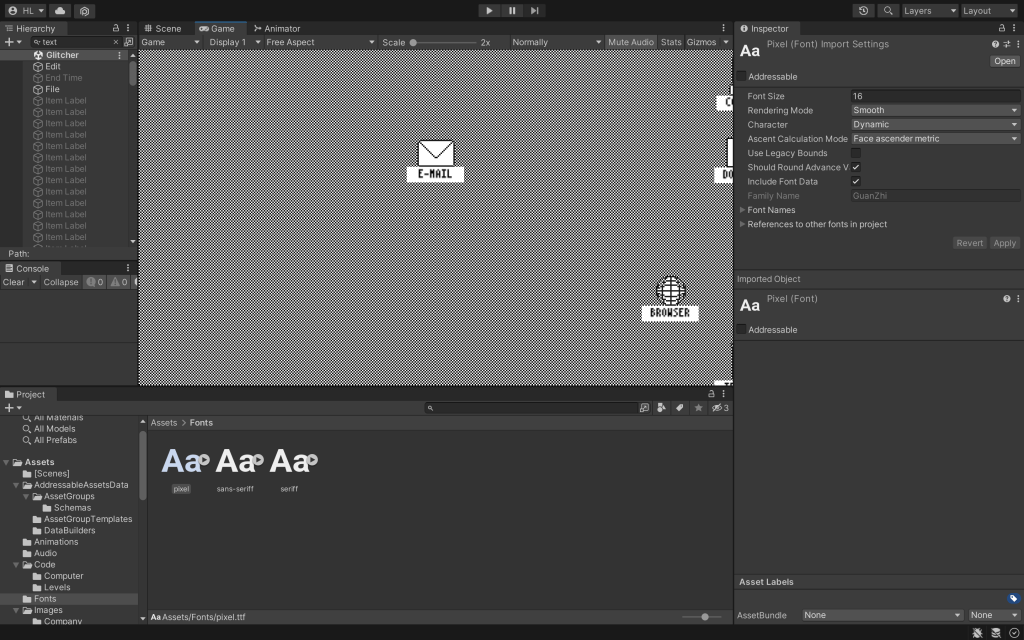
There are a lot of text information in the game and most of them can be searched by “text”.
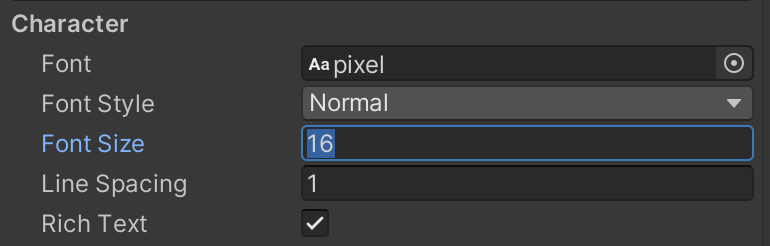
The original font doesn’t support CCJK, so we find another font, which has the pixel style.
Globalization Function
To enable localization, we used the method learned in the class.
First, we installed the localization package , typed in com.unity.localization under “Add package from git URL” in the Package Manager.
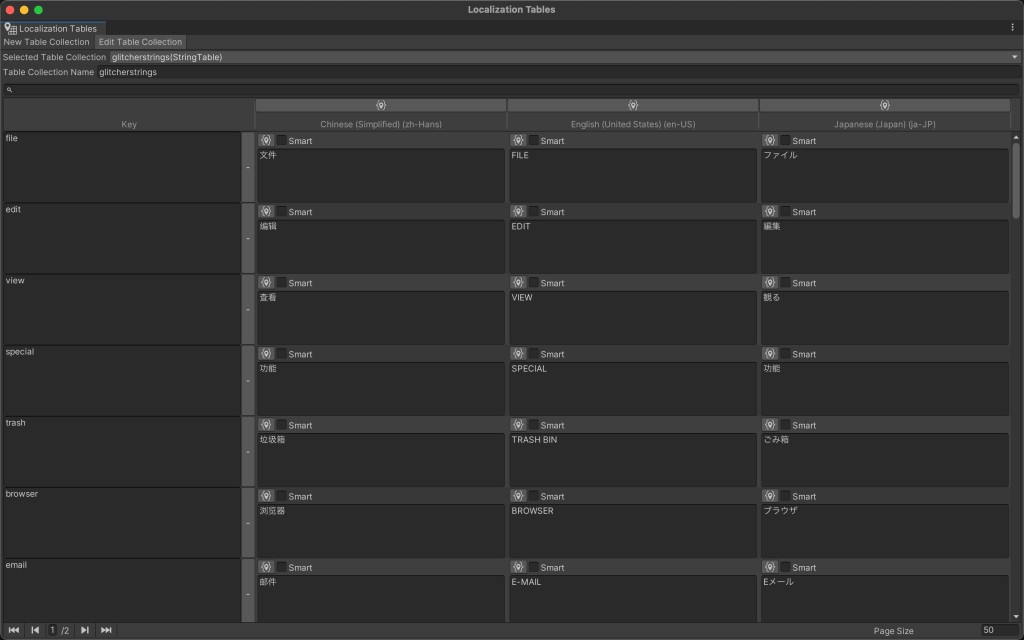
Then, we created a new folder in “Assets” called Localization. We created a Localization Settings.asset in Project Settings and put it in the “Localization” folder. We generated the Locales that we want, and also put the Locales files into the “Localization” folder. Afterwards, we created a “String Table Collection” in the Asset Management ➡ Localization Tables.
And then we were ready to externalize all the strings.
Externalize Strings
After creating the localization table, we were able to externalize the strings in the games.
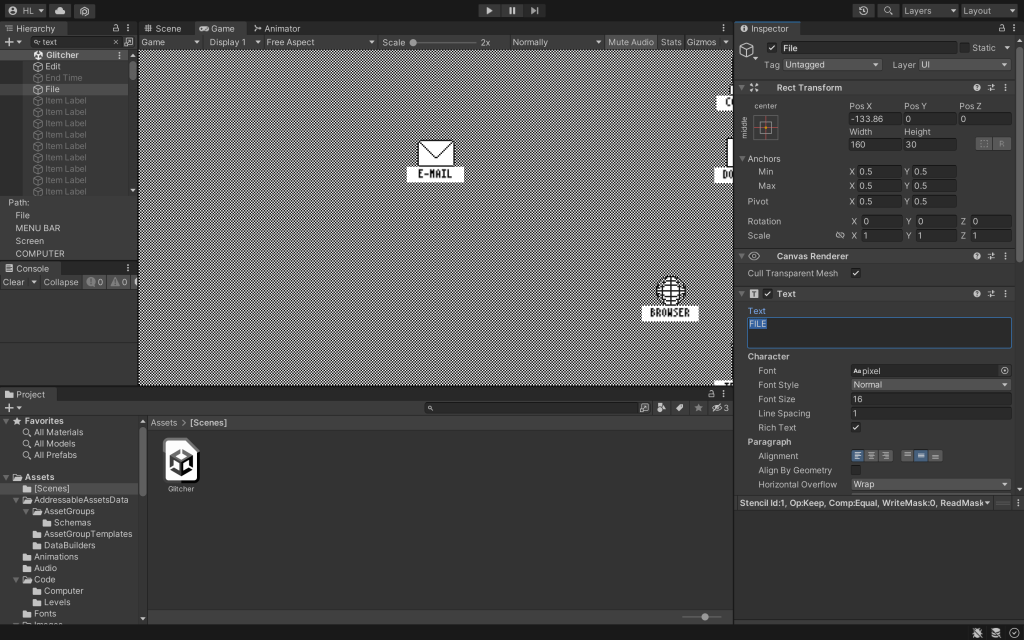
The way to find strings was pretty simple. We just needed to search “text” in Hierarchy, and almost all the properties with text would pops up.
Add Table Entry
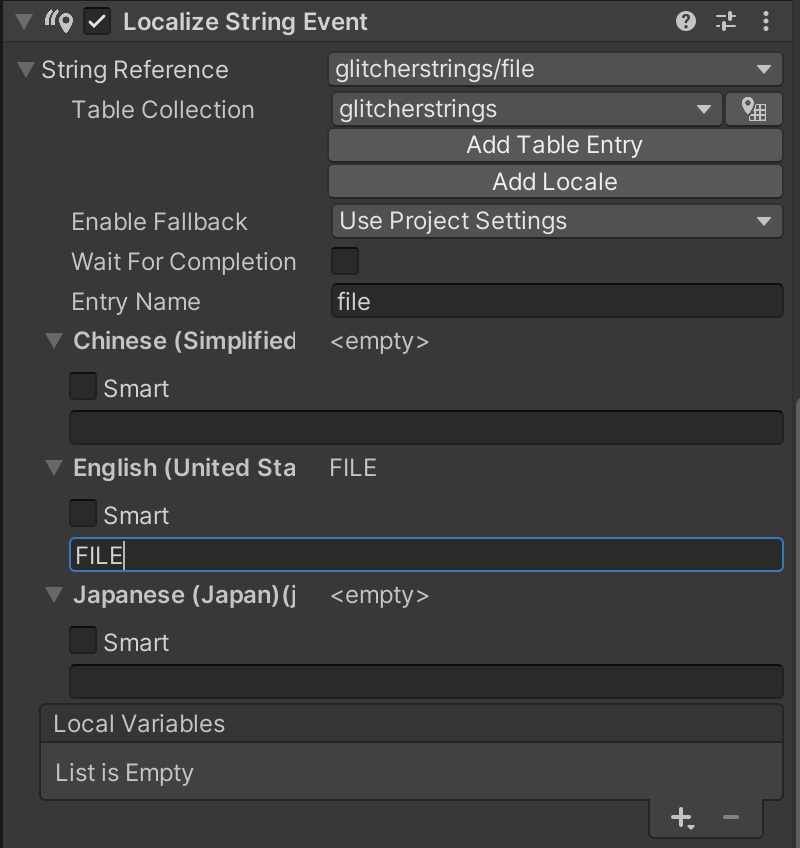
In the Inspector, we chose “Add Component”, and then selected “Localize String Event”. In the “Localize String Event” section of the Inspector, we can expand String Reference choose the string table that we created earlier. And then we can “Add Table Entry”. In “Entry Name,” we entered a key and expanded the locales. We put the original content the in English locales.
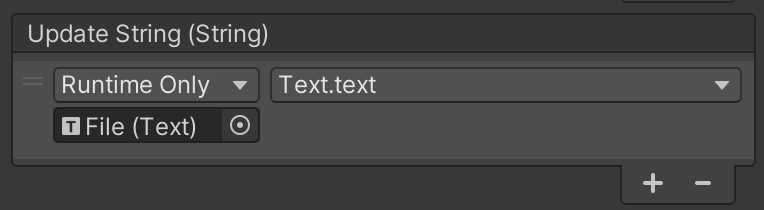
In the “Update String” section, we draged the “text” object into the “Update String” section where it says “None”. Then in the “No Function” section, we chose Text ➡ text.
Font
Since the original font doesn’t support CCJK, we will need to replace the font with the pixel.tft. For the font size, we chose 50% of the original size to better match the game image.
Translation
Since this was a group project, so we had different person responsible for externalizing the strings and the translation. So we just added the source language locale and leave the other locales blank.
When the translator translated the files, she first exported and imported XLIFF files in Unity. And then she made further adjustment in the localization table inside Unity.
Project Management
GitHub
Since this was a group project, it was not practical to complete all the work on one computer. How to ensure the stability and real-time of file transfer becomes a very important issue.
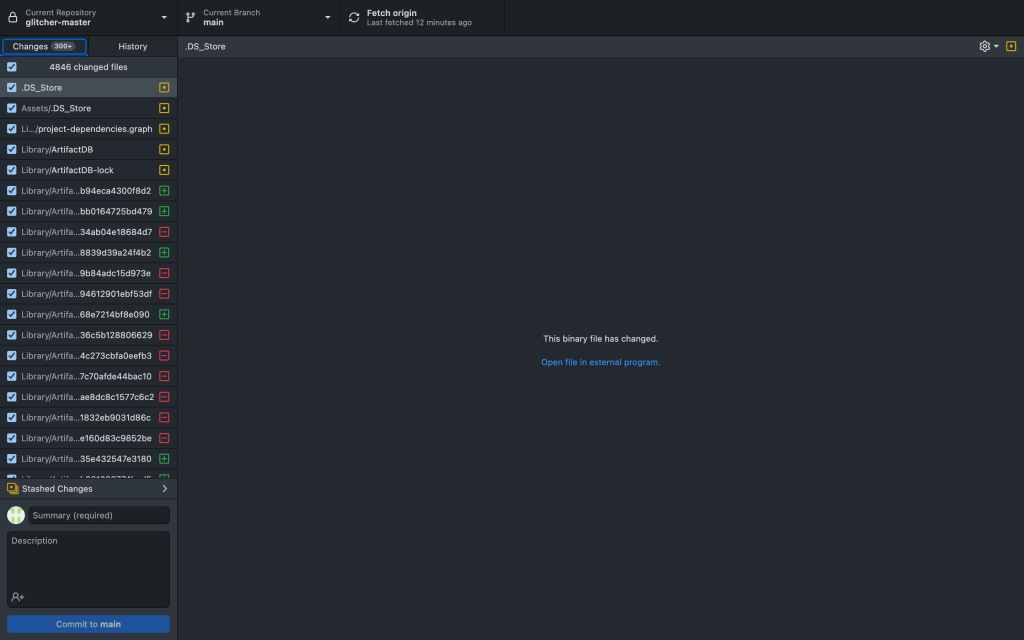
Finally, we chose to use GitHub Desktop to organize our project files. We can use the “Fetch origin” function to cache the files locally. Then after each valid change we make, we can select “Commit to main” to upload the file to the main repository.
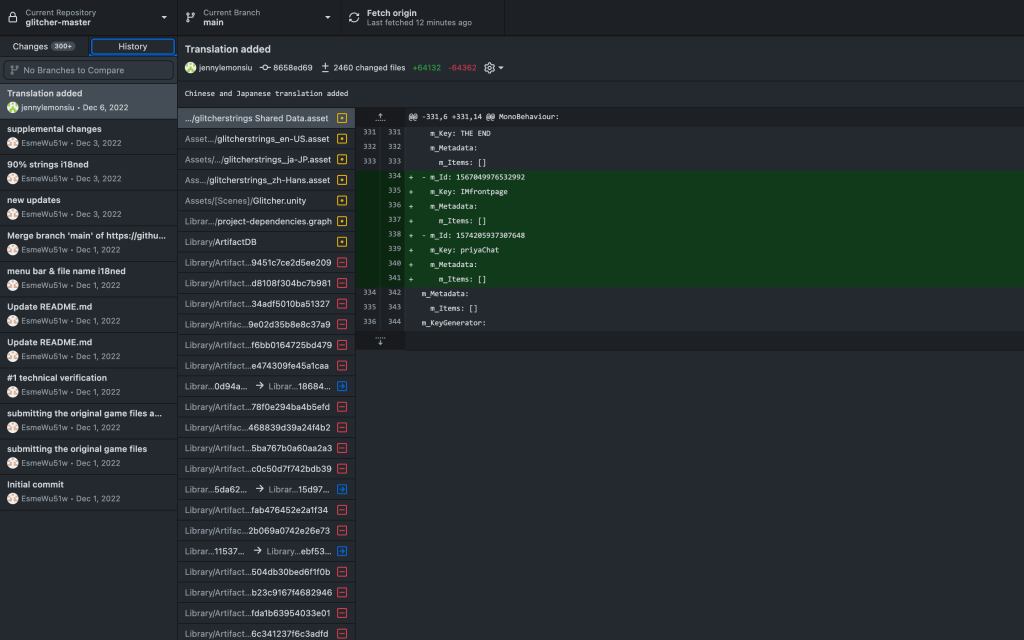
And, if someone accidentally uploads the wrong file, we can retrieve the history file, make changes and uploads again.
Unity Editor
To ensure that no additional bugs appear, we decided to use the same editor version, which is 2022.1.22f1.

To install a non-default editor, we need to go to Install Unity Editor ➡ Archive ➡ download archive, find the correct version and download.

Challenge
Dropdown List Localization
When we were externalizing the strings, we were not able to find the text of the dropdown list. So we realized that we were not able to localize the texts in the original way.
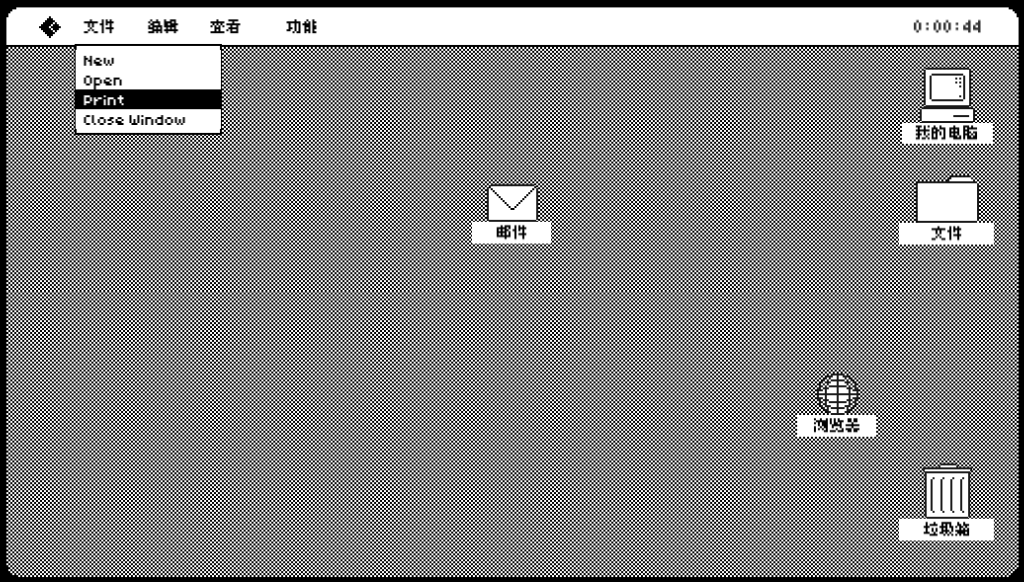
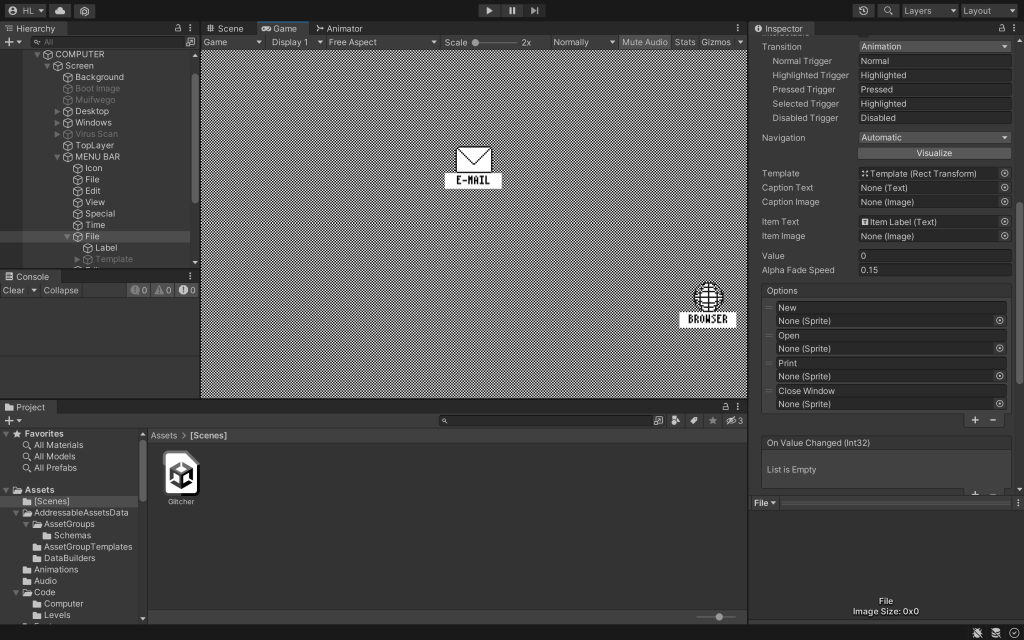
We found some of the texts in COMPUTER ➡ MENU BAR ➡ File ➡ Options, but there is no choice for us to localize the strings.
According to Haoyang, we can enable “Track Changes” in “Localization Scene Controls”, to make the localization function show in Options.
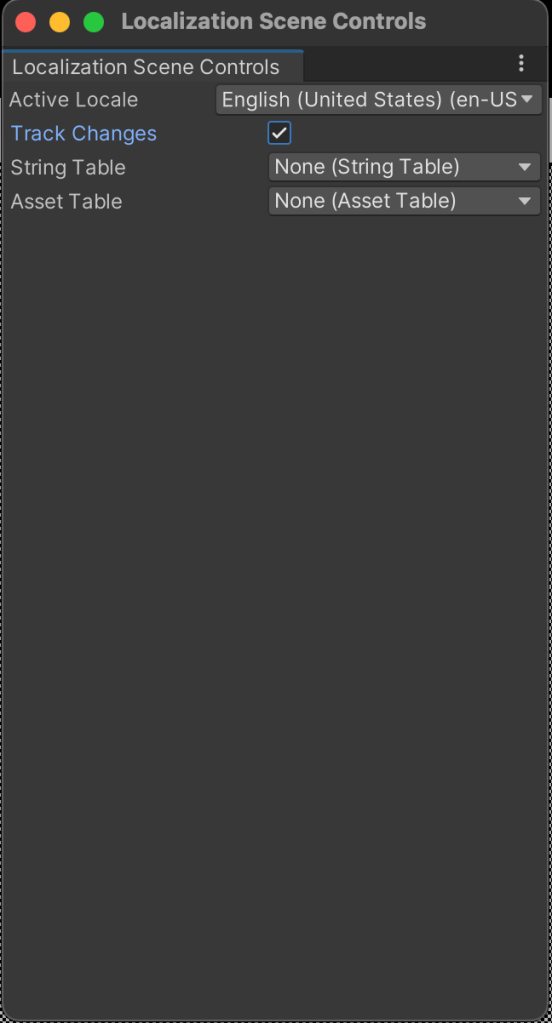
This method is really unstable because it DOSEN’T WORK ON MACBOOK. Haoyang was able to achieve the function on his laptop but we were not able to duplicate the process.
Lessons learned
The one and only lesson I learned in this project:
BUY A WINDOWS COMPUTER
I encountered a lot of challenges this smemster, and most of them related to my laptop. Either the application doesn’t support MacBook or it has less functions on MacBook. So maybe I should give up and embrace Windows…
 Haiyi Lin
Leave a comment