Game Overview
For this project, my colleague Yiwei Wu, Jocelyn Kwong, Bahna Miller, and I decided to try out hands at localizing an open-source C# game Top Down Car Racing into Chinese and French.
The coding language we used is C#. Specifically, we will use the Windows form and Resource file to localize the game.
The following is our I18N & L10N process:
Localization Check
There is some GUI overlay text and some instruction text in the game for us to externalize.
Meanwhile, there are 3 PNG files for us to do Desktop Publishing (DTP) in Photoshop.
Globalization Function
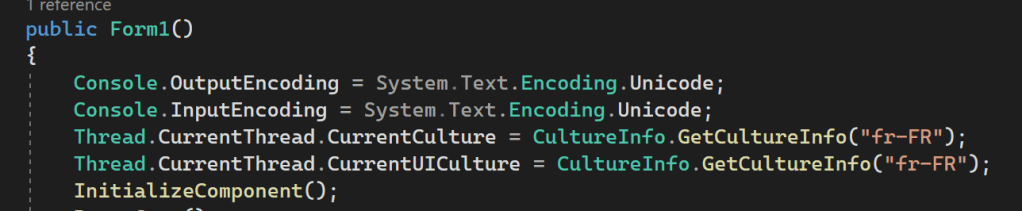
To add a function that enables globalization, we decide to use the code that we learned in class, which is
using System.Globalization;

using System.Threading;

Console.OutputEncoding = System.Text.Encoding.Unicode;

Console.InputEncoding = System.Text.Encoding.Unicode;

Thread.CurrentThread.CurrentCulture = CultureInfo.GetCultureInfo("fr-FR");

Thread.CurrentThread.CurrentUICulture = CultureInfo.GetCultureInfo("fr-FR");
We added this code to the main class of Form1.cs file. The language of the game could be changed when we change the language code inside the bracket. For example, fr-FR and zh-TW.
DTP
We did Desktop Publishing (DTP) with Photoshop. There are 3 images in total required DTP.






The difficulty of DTP is that we need to apply the Blending option. Meanwhile, we have to choose the right color to ensure that the gradient is similar to the original image.
Resource File
Text
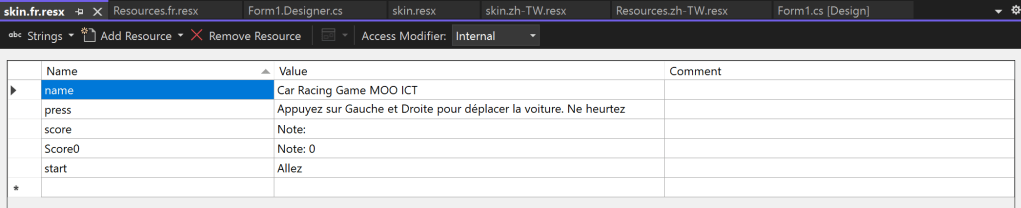
We used skin.string to externalize all the strings and input them into the Text Resource File.
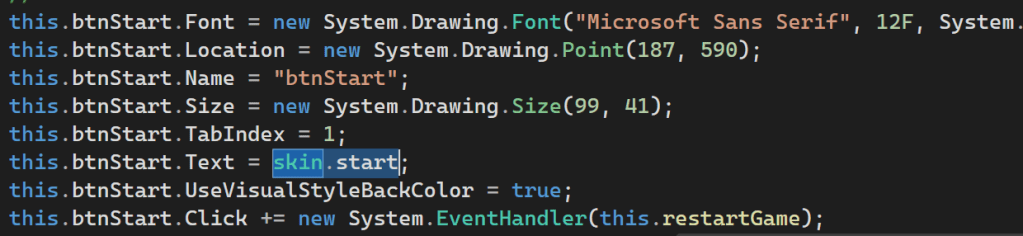

Then, we add resource files for each language to enable localization.

Image
For Image Resource File, there is already a file for image resources, so we don’t need to find the code that introduces the image but just add related Image Resource Files.
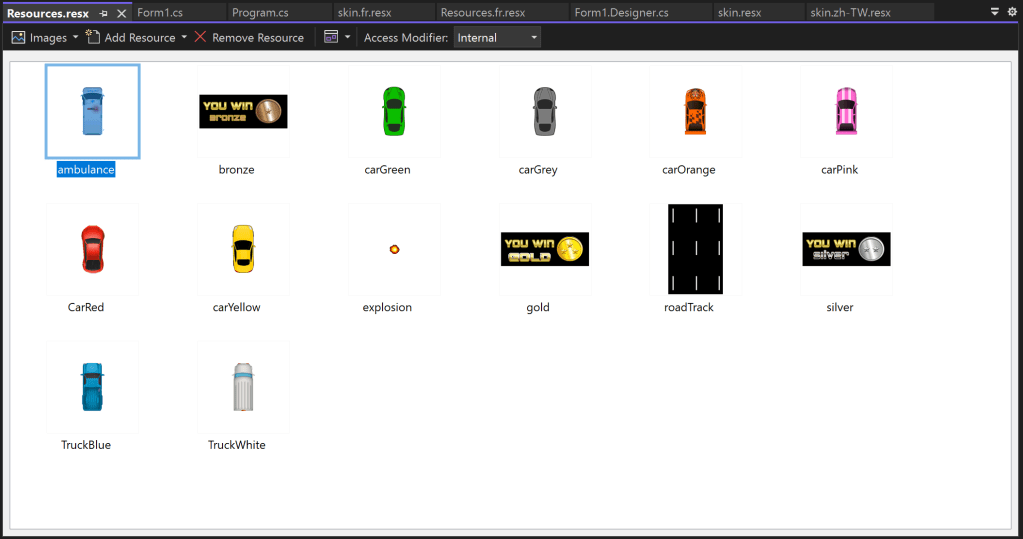
There are two things needed to be noted. One is the location of the resource file. Another is the path of the images.
Location of the Resource File
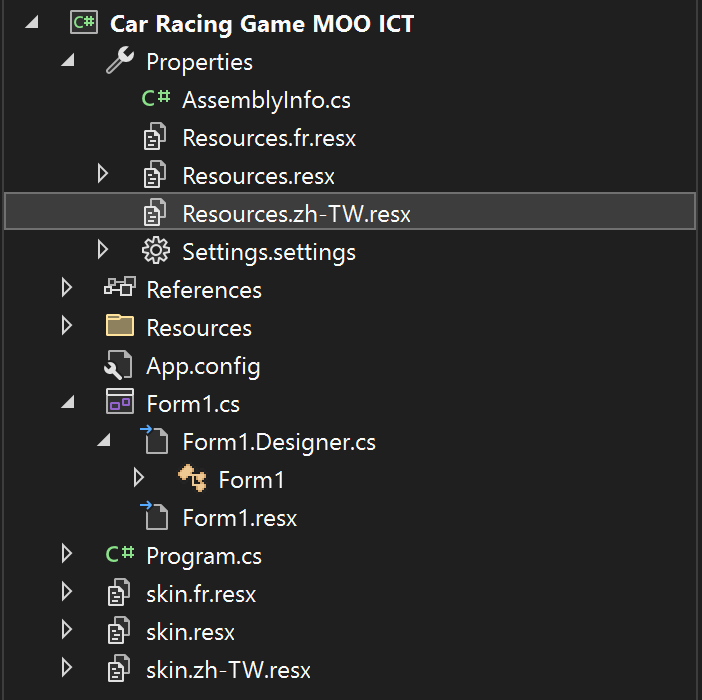
At first, we were confused by the location of the Image Resource File. We put the Image Resource File in the same location as the Text Resource File, but it didn’t work.
In the end, we figured out that the Image Resource Files should be put under the Properties folder.
Path of the Images
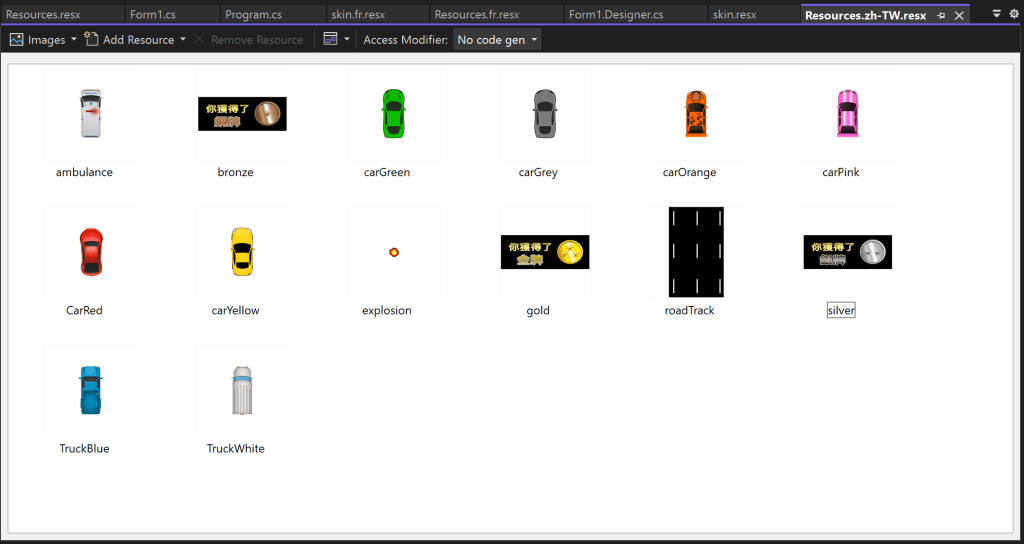
At first, we just copy and paste the images from the resource file into another resource file. This resulted in a duplicate file name that could not be matched with the code.

In the end, we figured out that we should first import the images to the Resources folder. And then, we should copy and paste them to the Image Resource Files. Then, we need to change the image name to make it make the coding.
Challenges
I18n error: odd concatenation

One difficulty we met in externalizing the strings is that there is a sentence split in half. Meanwhile, it has an odd concatenation like “\r\n\r\n”. There is another possible problem is text expansion since the sentence was split into two separate lines.
The solution to this problem is to remove all the connectives and join the broken sentences into one complete sentence. Surprisingly, this method actually works. The Text Expansion we were worried about before didn’t happen either. Sentences will be automatically line-wrapped because the size of the Text Box is set in the WinForm’s Design page.
String that contains variables
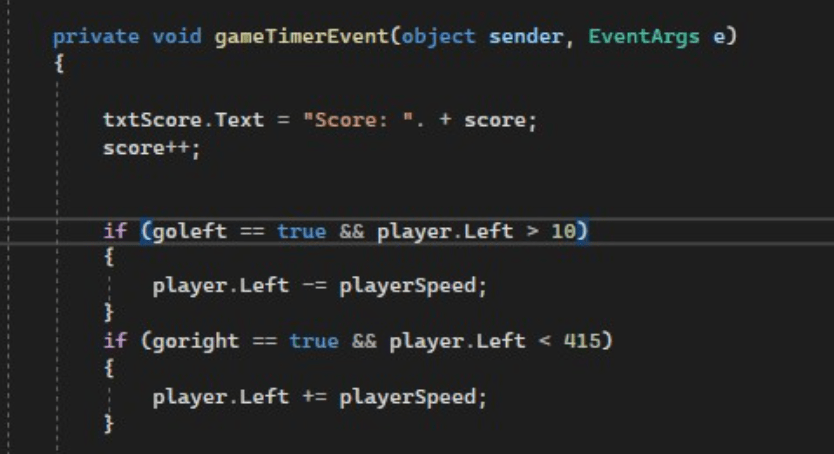
The text “Score: ” is linked to a game timer. We could not externalize the string for the Score without breaking the game.
The solution is to split the text and the variable and translate only the string.
Language Switcher Attempt
We tried to add a language switch to the game. We tried Radio Buttons, Listbox, and Dropdown List.
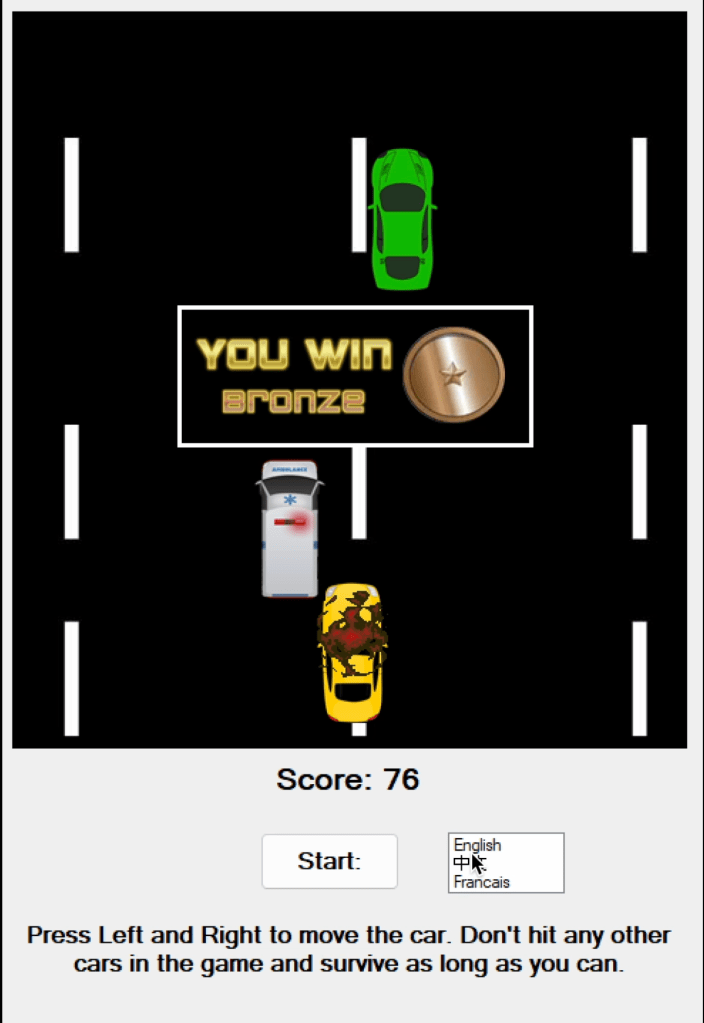
We managed to implement the language-switching feature, but one fatal problem is that the game’s shortcut keys are the same as List Box’s. When we press the left and right buttons, we can only toggle the List Box options, but not the car. And, we don’t know how we should change the shortcut keys of the car or List Box.
So, we finally gave up this attempt.
Lesson Learned
The one and only lesson I learned in this project:
BUY A WINDOWS COMPUTER
As a MacBook owner, I was deeply humiliated by Visual Studio in this project since the WinForm designer page didn’t show, even though I used the virtual machine.
For this project, all of the group members gathered together and used one computer to finish all the work. That’s not really an efficient way to finish a group project. So let us just buy a WINDOWS COMPUTER.
 Haiyi Lin
Leave a comment